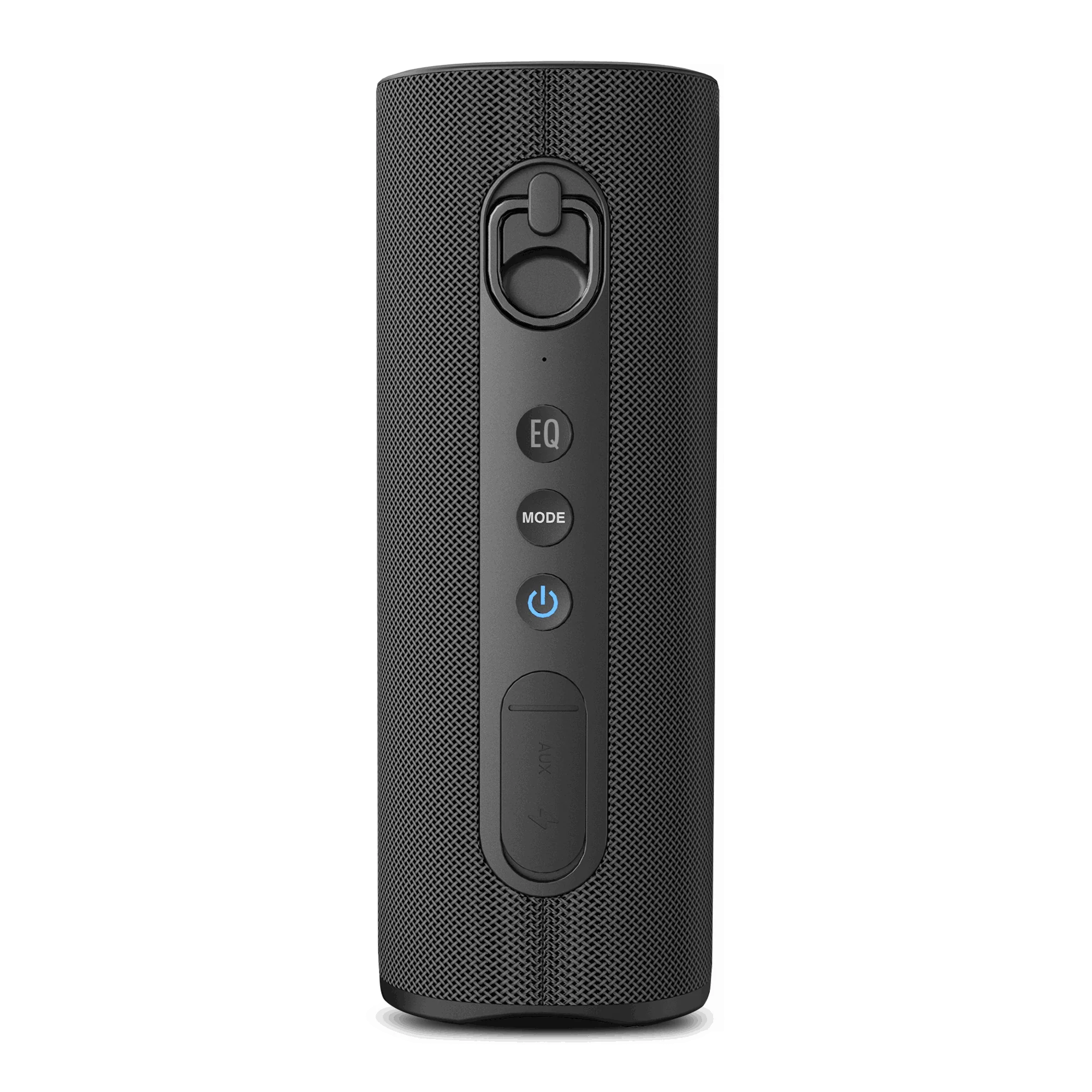
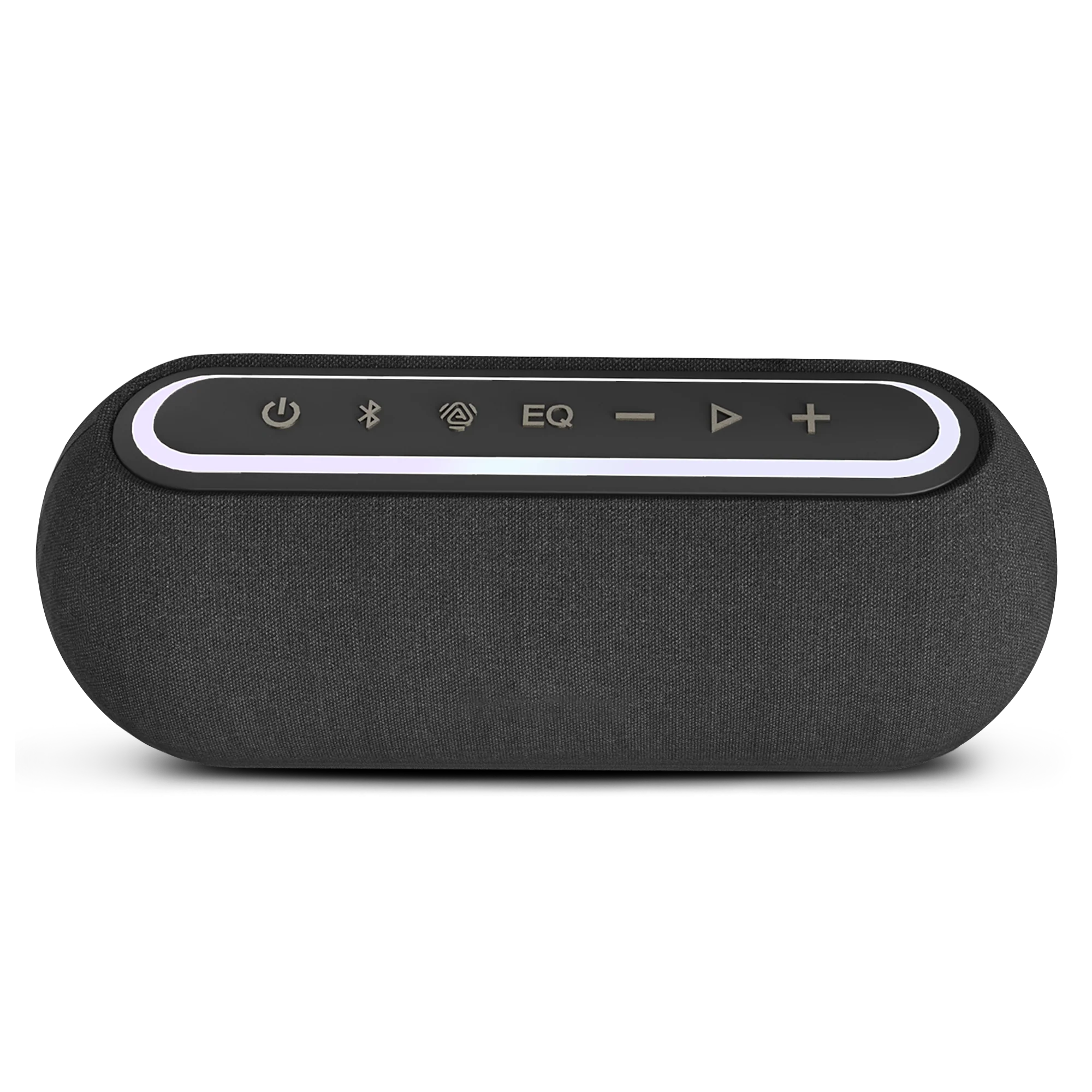
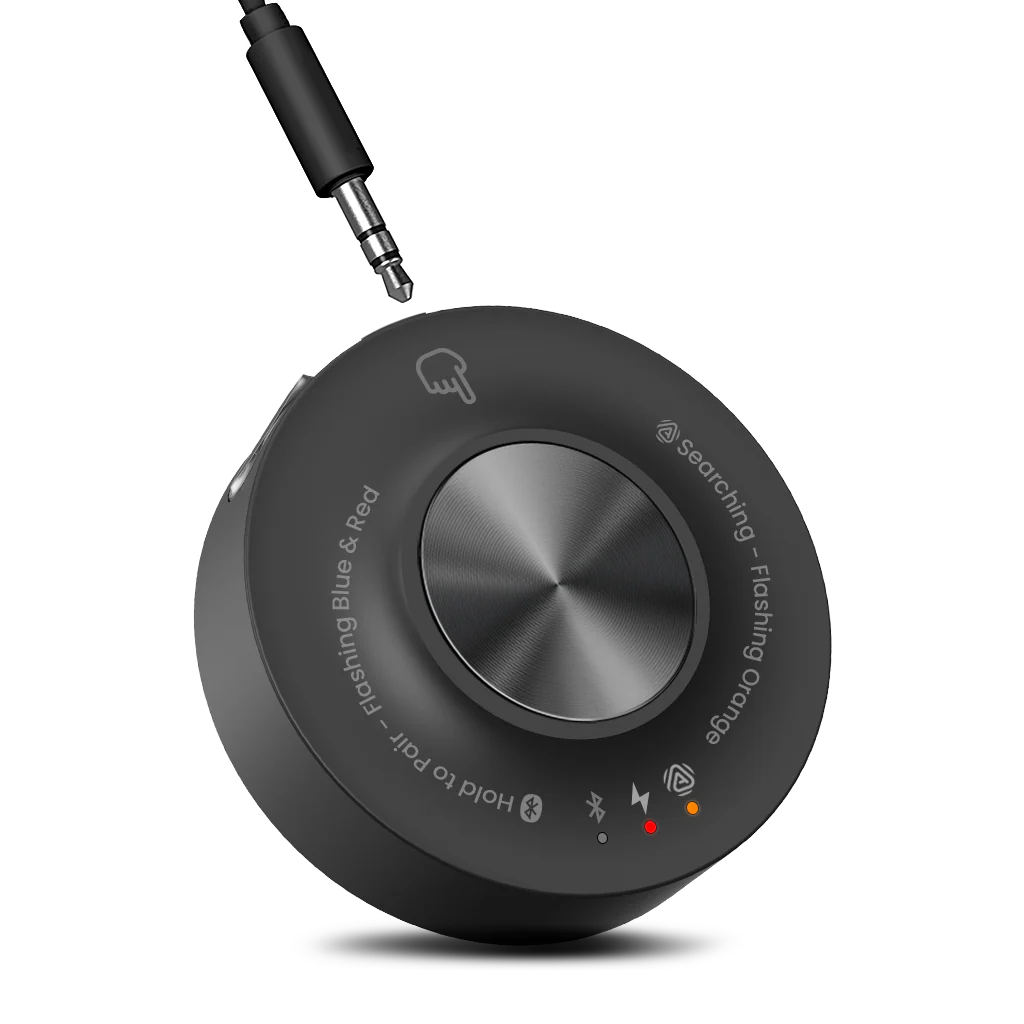
RCA Output
Connect RCA Out to the transmitter AUX In with an RCA-to-3.5 mm cable.
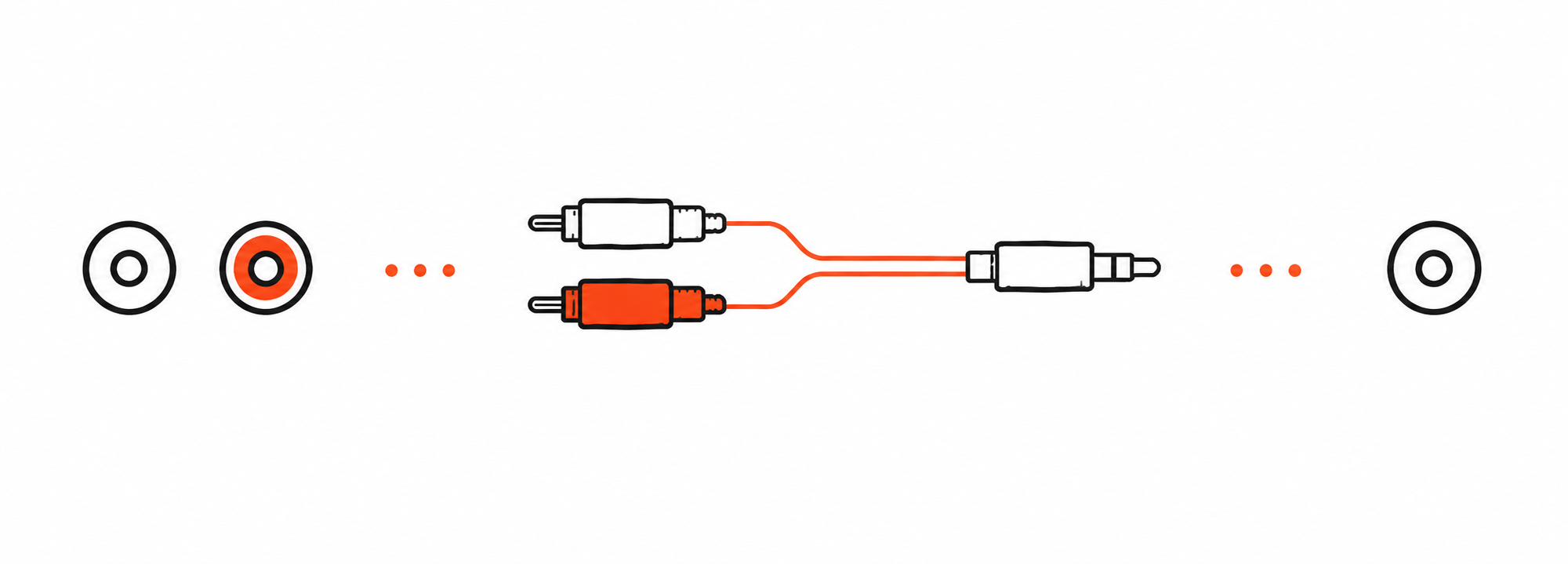

RCA cable not included. Buy separately if needed →

Interactive user guide
Follow four steps to start the Harmony A0 Auracast five-speaker system.
Choose the device that sends audio to the transmitter.
TV / Media Device
Mixer / AV System
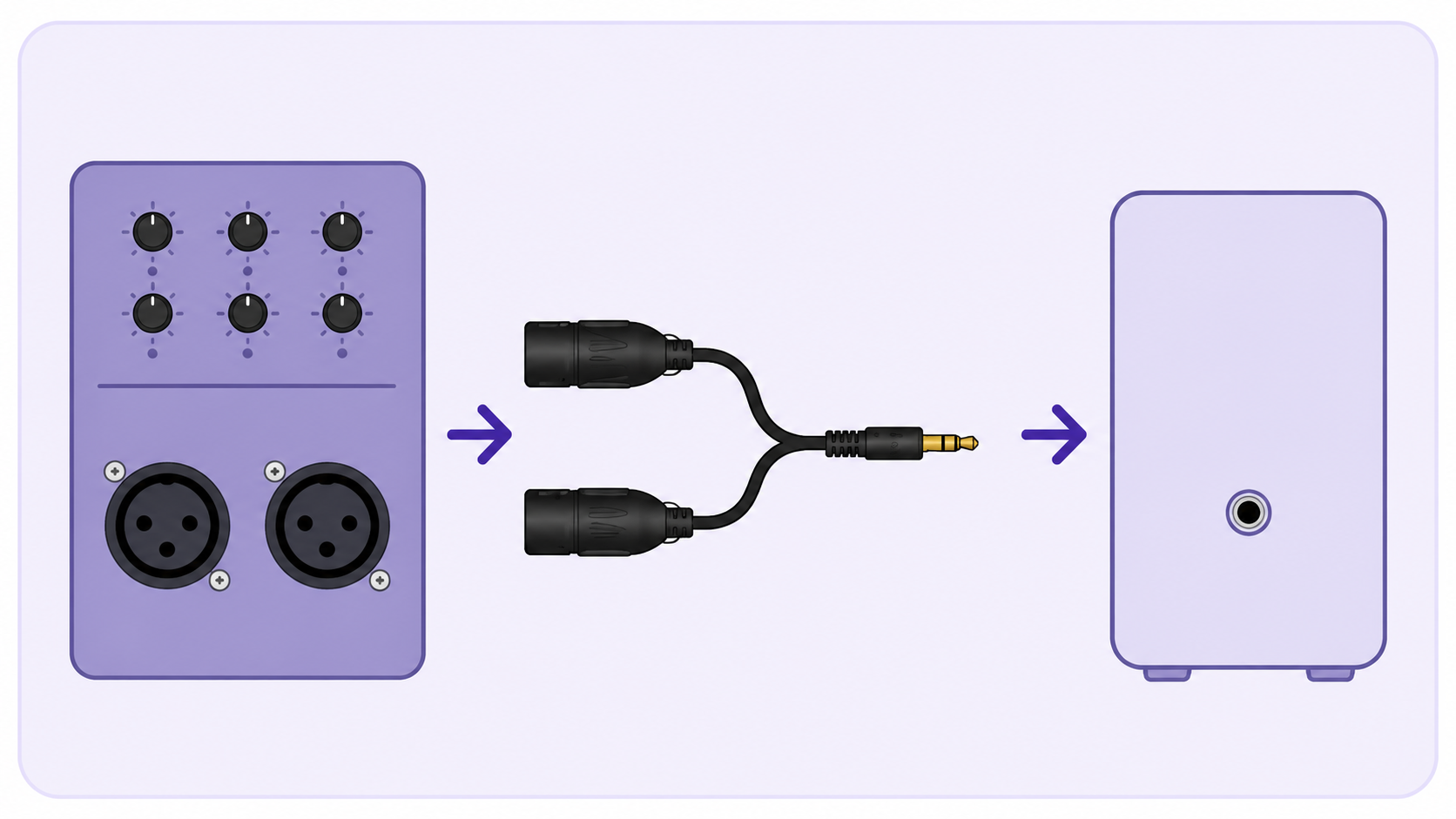
Stereo mixer output recommended

Mono output only
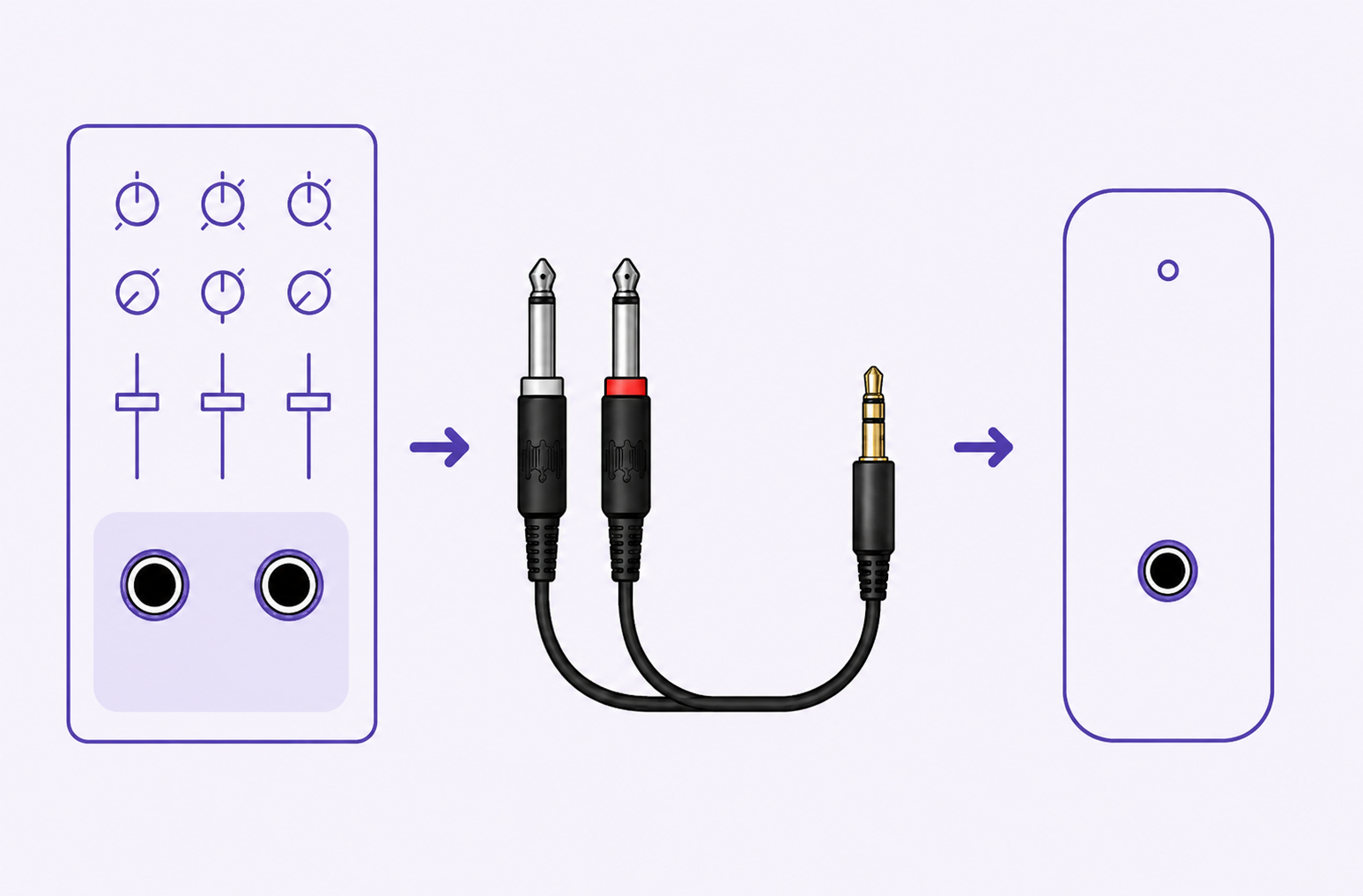
Stereo mixer output recommended
Connect RCA Out to the transmitter AUX In with an RCA-to-3.5 mm cable.
Connect 3.5 mm Out to the transmitter AUX In with the included 3.5 mm-to-3.5 mm cable.
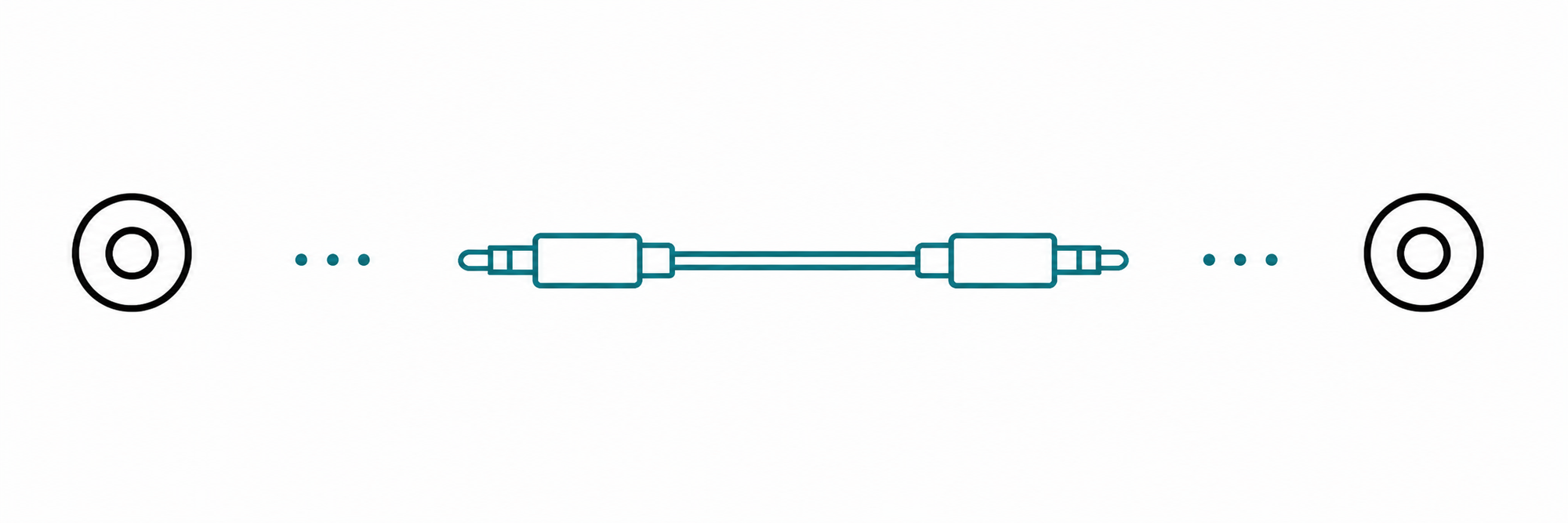
Phone / Tablet / Computer
Keep your phone close to the transmitter while pairing.
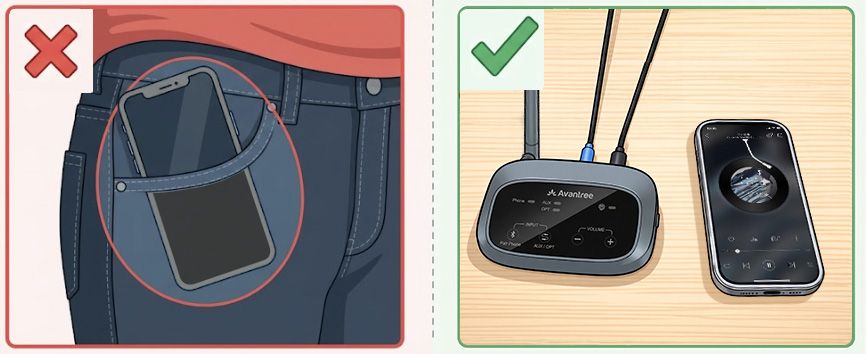
The transmitter not listed?
Before you start: finish Steps 2–3 — choose and connect your audio source.
Video: turn on a Harmony A0 speaker and check its mode light.
Auracast light: solid orange on each speaker.
All speakers play the same audio.
Light flashing orange or off?
Still no audio? Fix a problem →
Placement
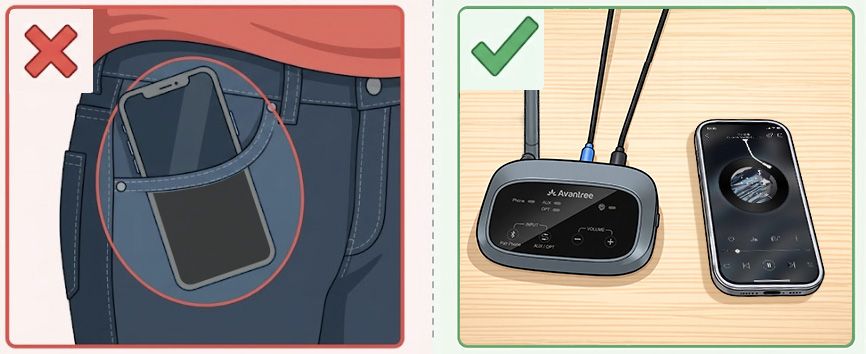
Quick help
Problem: The speaker light is flashing orange or off, and that speaker is silent.
Possible cause: The speaker is in Bluetooth mode, is too far from the transmitter, or the transmitter is not receiving audio.
Solution: Confirm the transmitter is on and playing audio. Double-press the speaker's Power / mode button, then move the speaker near the transmitter.
Expected result: The speaker light turns solid orange and the speaker plays the same audio as the other speakers.
Problem: The speakers are connected, but the sound is too quiet.
Possible cause: The source, transmitter, or individual speaker volume is low.
Solution: Set the TV, phone, or computer volume to about 80%. Press + on the Harmony A0 transmitter, then press + on each quiet speaker.
Expected result: Audio becomes louder without losing the solid orange connection light. Open the volume guide →
Problem: The phone or computer cannot find or connect to the Harmony A0 speaker.
Possible cause: The speaker is still in Auracast mode or has an old Bluetooth pairing.
Solution: Double-press the speaker's Power / mode button. If the light does not flash red and blue, hold Play / pause for 2 seconds. Select Venucast Harmony A0 Solo in the device's Bluetooth settings. If pairing still fails, hold + and − together for 5 seconds to clear Bluetooth pairing history, then try again.
Expected result: The speaker light turns solid blue. Open the reset guide →
Firmware update
Update each speaker separately, one at a time.
Download the Firmware Update Tool.
Connect one Harmony A0 speaker to your computer.
Firmware update cable: Use the gray-tip cable included with your device.
Mac users: an Apple charging cable also works.
Run the updater.
Follow its instructions and keep one Harmony A0 speaker connected until the update is complete.
Download the Firmware Update Tool.
Connect the Harmony A0 transmitter to your computer.
Firmware update cable: Use the gray-tip cable included with your device.
Mac users: an Apple charging cable also works.
Run the updater.
Follow its instructions and keep the Harmony A0 transmitter connected until the update is complete.
PC tool · Optional
Connect the Harmony A0 transmitter to your computer.
Open the Firmware Update Tool and select Advanced.
Example Oasis Aura Firmware Update Tool screen with Avantree branding. Select the image to enlarge.
Optional expansion
Use Daisy Chain to extend coverage.
Original coverage
 Transmitter 1
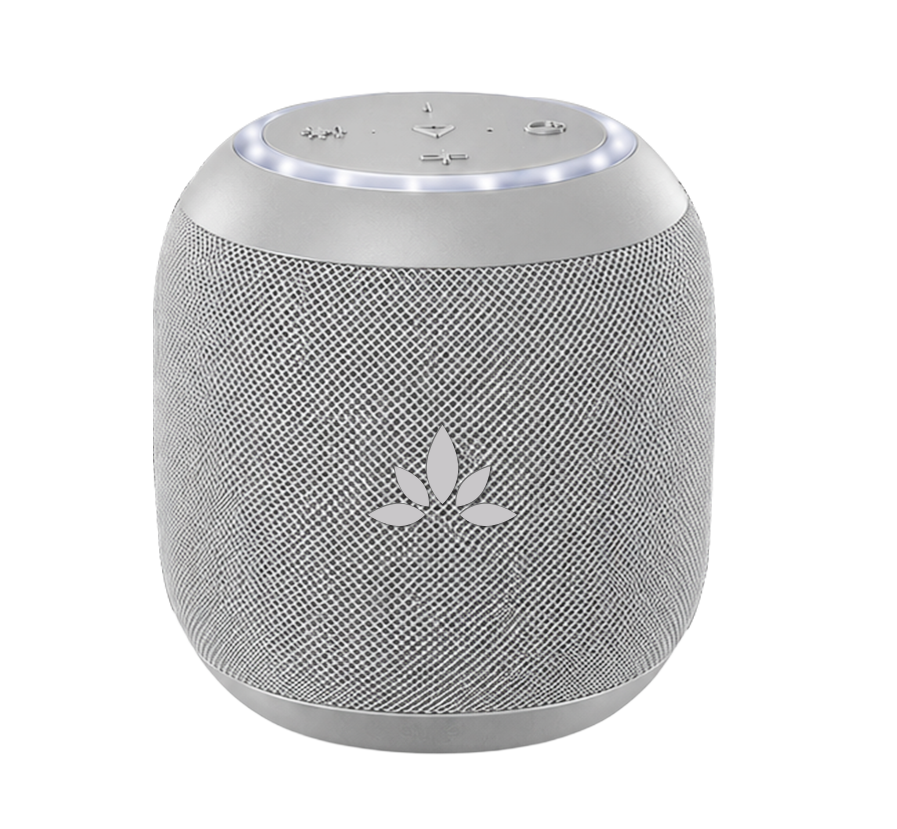
 AuraLink
3.5 mm AUX cable
AuraLink AUX out → Transmitter 2 AUX in
Extended coverage
Transmitter 2Speaker mode
Connected: The LED turns solid blue.
Still cannot pair? Open Bluetooth pairing help →
Video: switch a Harmony A0 speaker to Bluetooth mode and connect it to your device.
Charging
Charge each speaker with the included USB-C cable and a 5 V / 1 A USB power source. A full charge takes about 4 hours.
Charging light: Solid red. The light turns off when the speaker is fully charged.
Need more help?
Our support team is here for you.
Was this helpful?