RCA Output
Connect RCA Out to Oasis Aura AUX In with an RCA-to-3.5 mm cable.
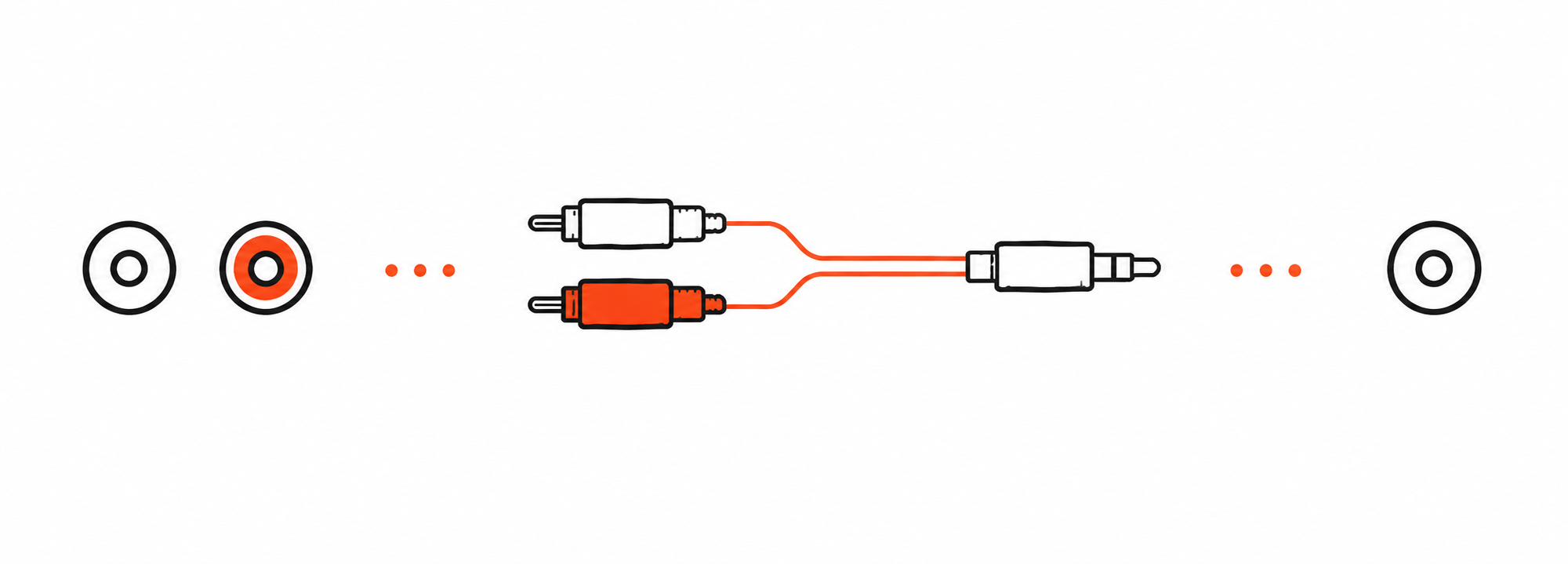

RCA cable not included. Buy separately if needed →

Oasis Aura setup
Follow four steps to start the Oasis Aura broadcast.
Choose the device that sends audio to Oasis Aura.
TV / Media Device
Mixer / AV System
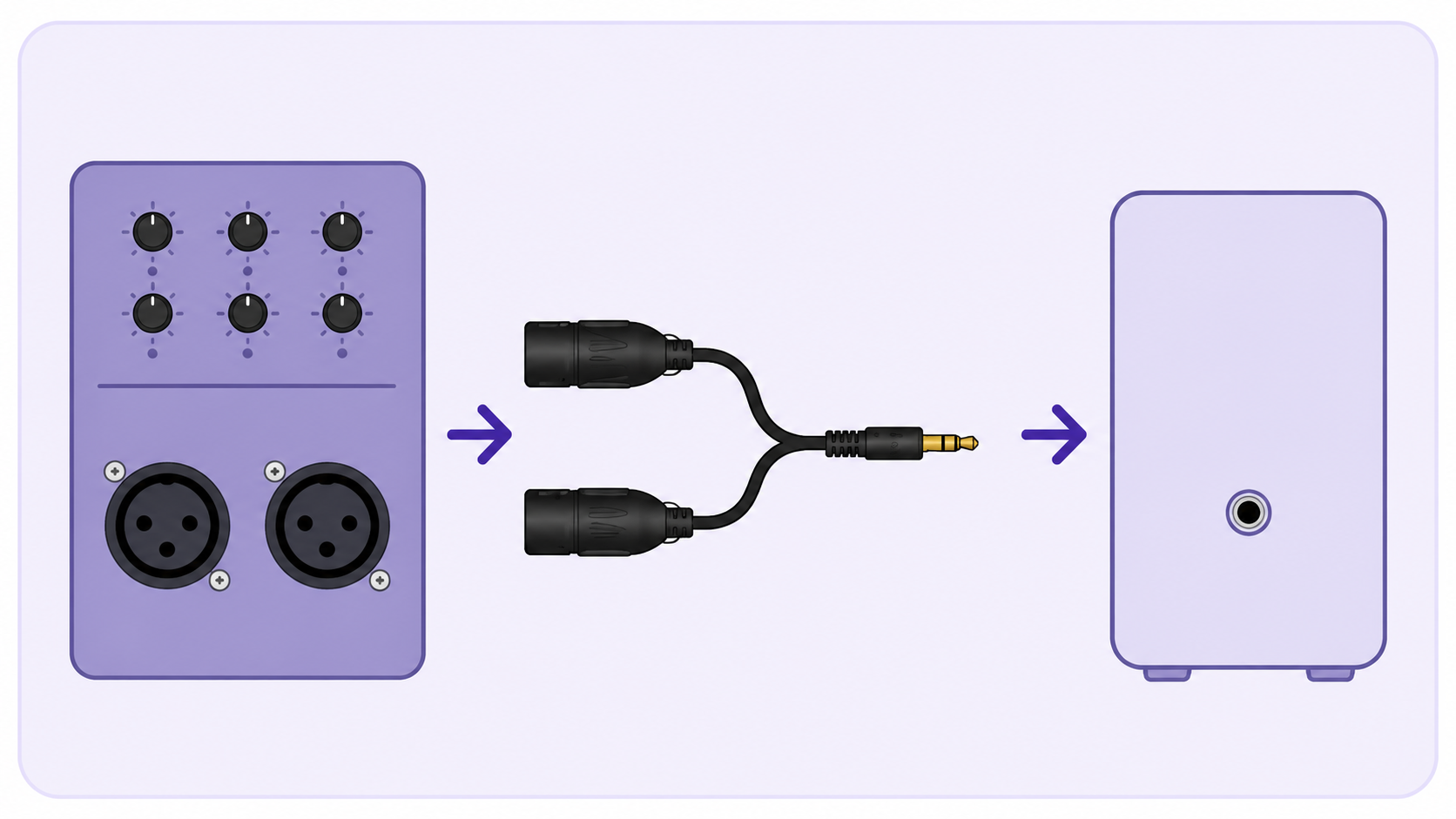
Stereo mixer output recommended

Mono output only
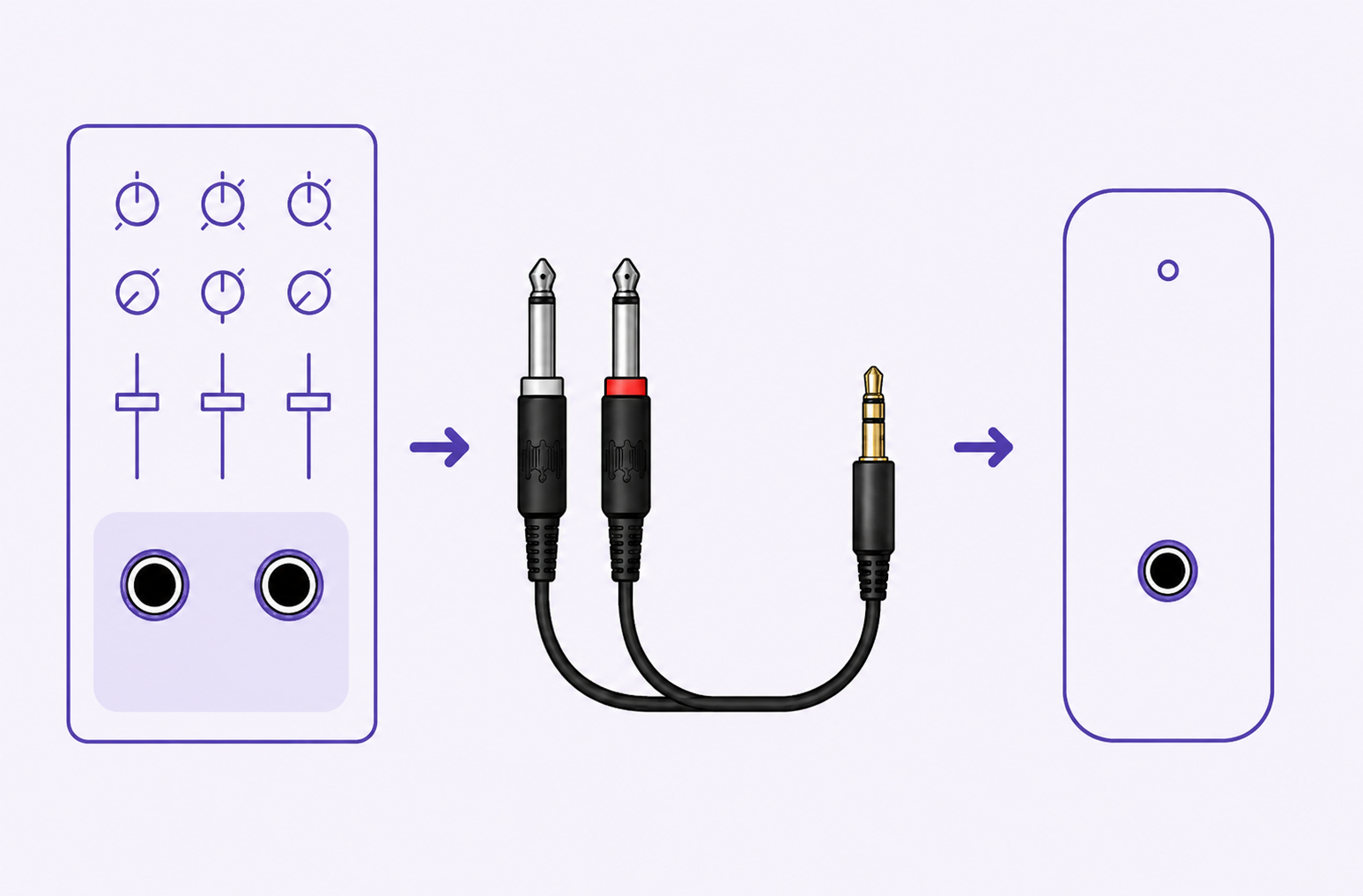
Stereo mixer output recommended
Connect RCA Out to Oasis Aura AUX In with an RCA-to-3.5 mm cable.
Connect 3.5 mm Out to Oasis Aura AUX In with the included 3.5 mm-to-3.5 mm cable.
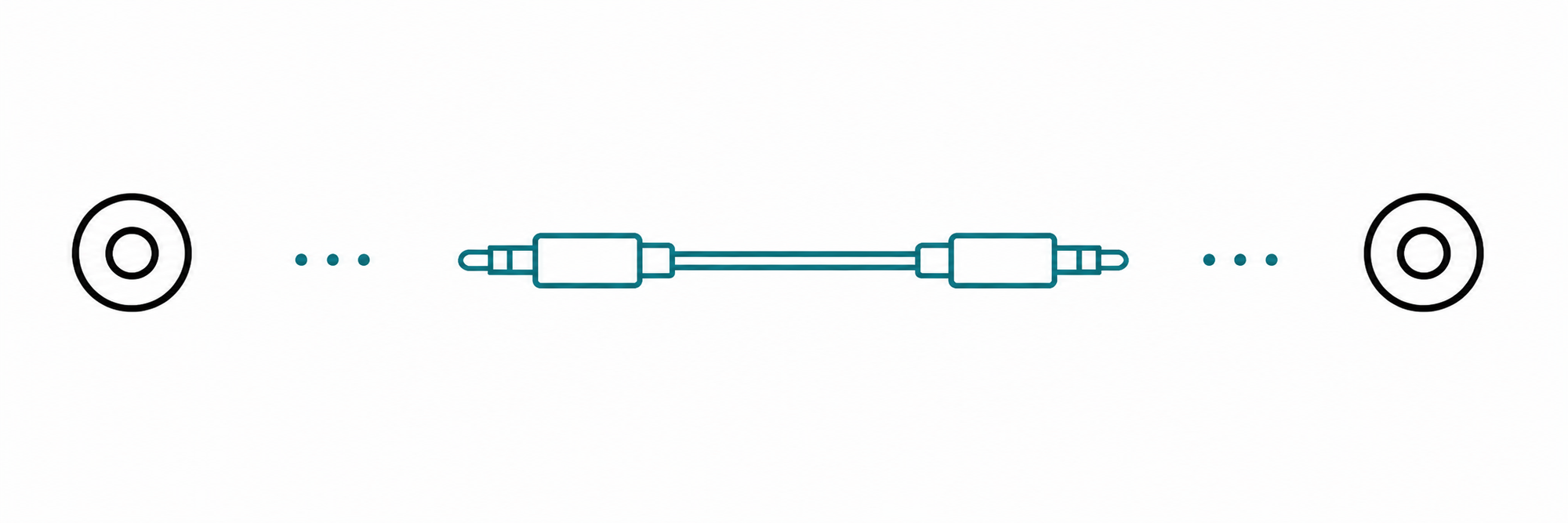
Phone / Tablet / Computer
Keep your phone close to Oasis Aura while pairing.
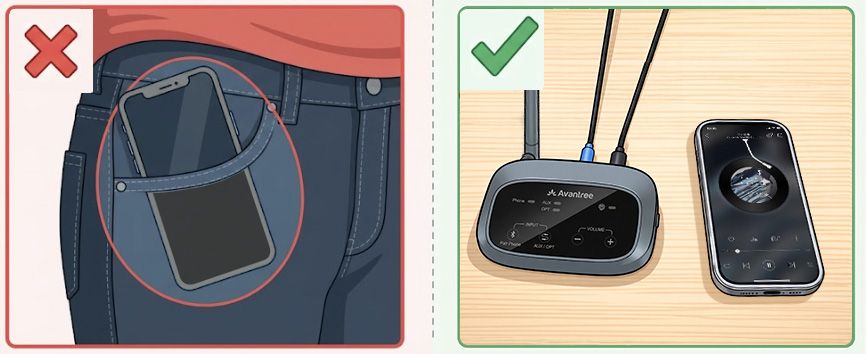
Select your device to hear the Oasis Aura broadcast.
Quick help
Oasis Aura no sound: the source is playing, but you cannot hear it. The selected input, TV format, or device connection may not match.
Done: the audio indicator responds and you can hear the audio. If still silent, open the full No sound guide above or Contact Support.
Oasis Aura audio cutting out: when a phone sends audio by Bluetooth, distance or nearby 2.4 GHz devices may interrupt the input.
Done: you hear audio without interruptions. If not, open the full Audio cutting out guide above or Contact Support.
Firmware update
Update only when a release applies or Support recommends it.
Firmware version note
Avantree unit shows V20.x.x?
Update to the latest V10.x.x.
This is correct—not a downgrade.
Download the Firmware Update Tool.
Connect Oasis Aura to your computer.
Firmware update cable: Use the gray-tip cable that came with your device.
Mac users: an Apple charging cable also works.
Run the updater.
Follow its instructions and keep Oasis Aura connected until the update is complete.
Using Batch No. 26B1? If Oasis Aura is not detected, try another USB data cable or Contact Us for a free one.
During the update: do not unplug Oasis Aura or close the updater.
PC tool · Optional
The DFU Tool Advanced screen includes these optional broadcast controls.
Example DFU Tool screen with Avantree branding. Select the image to enlarge.
Change the name shown when searching for Oasis Aura.
Add a passcode so only people with the correct code can join.
Adjust the transmitter's default broadcast volume.
Create a QR code for joining the broadcast.
Requires compatible hearing aids and an app that supports joining by QR code.
Apply the same broadcast name and passcode to multiple supported receivers.
Need more help?
Our support team is here for you.